PoloPrint Community

    • Login
    • Search
    • Recent
    • Tags
    • Popular
    1. Home
    2. 陆
    3. Posts
    • Profile
    • Following 0
    • Followers 0
    • Topics 1
    • Posts 188
    • Groups 1

    Posts made by 陆

    • RE: Take this print down!

      @apple_user_1742513984 171cf019-1a66-43c2-8f3d-c9b1988031d7-Screenshot_20251127_105627.jpg
      Which file are you referring to?

      posted in PoloPrint Cloud APP
      陆
      Eric
    • RE: Clay cutters

      @Koralys-Torres said in Clay cutters:

      What are the best setting and how to work with them to make cutters for charms.

      1. Modeling settings

      Wall thickness: 0.8 to 1.2 mm for small charm cutters.

      Cutter edge: Slight outward taper helps release clay. A 0.3 to 0.5 mm thin cutting edge works well.

      Height: 10 to 15 mm so you can hold it comfortably.

      Bottom lip: Add a 0.4 to 0.6 mm blunt edge for stability.

      1. Slicer settings

      Layer height: 0.12 to 0.20 mm for a smooth edge.

      Walls/perimeters: 3 to 4 walls for strength.

      Infill: 20 to 30 percent is enough.

      Top layers: 3 to 5.

      Material: PLA works fine. PETG if you need more durability.

      Nozzle: Standard 0.4 mm.
      4d1e70d8-5569-480a-83cd-ac6e5045d724-image.png

      posted in TINA2 Serials
      陆
      Eric
    • RE: Custom models

      @Andred-Sarceno Here're some guidance on creating your own 3D models for printing:

      1. Using AI Function of the App:
        Once you have bound your machine with the app, you can directly use the AI function to create your own models.

      8e660ce8-7fe7-42e8-b8e0-0640fc252e11-微信图片_20240705100817.jpg
      2. Downloading Files from Websites:

      • You can download your favorite files from websites like:
        • Thingiverse
        • Cults3D
        • Free3D
      • After downloading, you can either upload them to the app for printing or use computer software like Wiibuilder to slice and prepare them for printing. Here is a tutorial for Wiibuilder: Wiibuilder Tutorial
      1. Learning to Use Professional Modeling Software:
        Depending on your preference and the complexity of the models you want to create, you can use professional modeling software to export STL files for printing. Here are some options:
        • Desktop Software:
          • Blender
          • SketchUp
          • 3DMax
        • Web-based Software:
          • Tinkercad
        • Mobile Apps:
          • SketchUp (Mobile)
          • Tinkercad (Mobile)
      posted in TINA2 Serials
      陆
      Eric
    • RE: Rate projects

      @apple_user_1762812784 Thank you for sharing your suggestion. Your feedback is genuinely valued, and I will relay it to our app development department for their careful consideration.

      posted in TINA2 Serials
      陆
      Eric
    • RE: Holiday Collections

      @Tina-j whether you are referring to the Christmas model?

      posted in PoloPrint Cloud APP
      陆
      Eric
    • RE: .2mm nozzle

      @DXRKRCR said in .2mm nozzle:

      safe to use the .2mm nozzle

      It is safe to use the 0.2 mm nozzle. However, because the nozzle diameter is smaller, you may notice that the filament does not extrude as smoothly as before. To improve the result, we kindly suggest lowering the printing speed or slightly increasing the printing temperature.

      Please also remember to update this parameter in WiiBuilder so the settings match your new nozzle.
      12d27586-ae2a-42ad-8e15-6a7eb952a3c0-image.png

      posted in TINA2 Serials
      陆
      Eric
    • RE: Fidget

      @Brantley-1 I would like to provide you with some helpful information on how to get started with 3D printing using models available online. Here’s a step-by-step guide to assist you:

      1. Download 3D Models: You can find a wide variety of 3D models to print from the following websites:

        • Thingiverse
        • Cults
        • Free3D
      2. Extract the Model Files: Once you find a model you like, download the file to your computer. These files are typically compressed in ZIP format. To access the model, you will need to unzip the file, which will reveal the STL file. The STL file is the standard format used for 3D printing.

      3. Prepare the Model for Printing: The next step is to prepare the model for printing, which involves slicing the STL file. This process converts the model into layers that your 3D printer can understand. Depending on your setup, you can do this using the following options:

        • Wiibuilder Software: You can learn how to use Wiibuilder software from this link on your computer.
        • Poloprint Cloud App: Alternatively, you can upload the STL file to the Poloprint Cloud app on your phone using this link.

      Feel free to reach out if you have any questions or need further assistance with your 3D printing projects.
      posted in TINA2 Serials
      陆
      Eric
    • RE: Other Files

      @Kody-0 I would like to provide you with some helpful information on how to get started with 3D printing using models available online. Here’s a step-by-step guide to assist you:

      1. Download 3D Models: You can find a wide variety of 3D models to print from the following websites:

        • Thingiverse
        • Cults
        • Free3D
      2. Extract the Model Files: Once you find a model you like, download the file to your computer. These files are typically compressed in ZIP format. To access the model, you will need to unzip the file, which will reveal the STL file. The STL file is the standard format used for 3D printing.

      3. Prepare the Model for Printing: The next step is to prepare the model for printing, which involves slicing the STL file. This process converts the model into layers that your 3D printer can understand. Depending on your setup, you can do this using the following options:

        • Wiibuilder Software: You can learn how to use Wiibuilder software from this link on your computer.
        • Poloprint Cloud App: Alternatively, you can upload the STL file to the Poloprint Cloud app on your phone using this link.

      Feel free to reach out if you have any questions or need further assistance with your 3D printing projects.

      posted in TINA2 Serials
      陆
      Eric
    • RE: .2mm nozzle

      @DXRKRCR The nozzles are the universal MK8 type. You can find compatible 0.2 mm MK8 nozzles by searching for them on Amazon

      posted in TINA2 Serials
      陆
      Eric
    • RE: Unbind

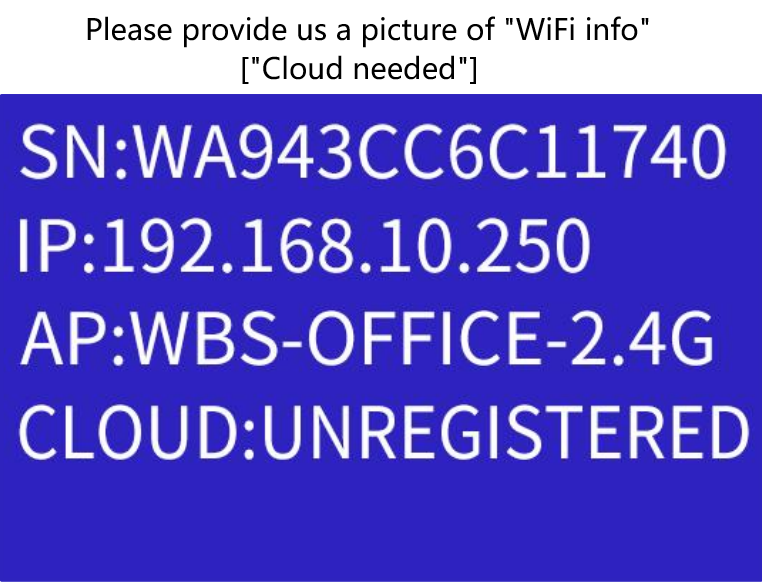
      @Lacey-Wimberly 4bb5ef44-06a4-4b20-a444-a785e645a419-wifi info.png
      Please provide us a picture of "WiFi info".(Cloud included)

      posted in TINA2 Serials
      陆
      Eric
    • RE: Beginner

      @jens-uhsemann
      I’d like to share some useful insights to help you begin your 3D printing journey using readily available online models. Please find below a concise step-by-step guide to assist you through the process:

      1. Download 3D Models
        Explore a diverse selection of 3D models from these reputable platforms:

        • Thingiverse
        • Cults
        • Free3D
      2. Extract the Model Files
        Once you’ve chosen a model, download it to your computer. Most files come in a compressed ZIP format. Simply unzip the folder to access the STL file, which is the standard format for 3D printing.

      3. Prepare the Model for Printing
        The next step involves slicing the STL file—converting it into layers that your 3D printer can interpret. Depending on your preferred setup, you can proceed with either option below:

        • Wiibuilder Software: Learn how to use the Wiibuilder software through this guide.
        • Poloprint Cloud App: Alternatively, you can upload your STL file via the Poloprint Cloud app on your phone using this link.

      Our app receives weekly model updates, including exclusive themed designs during holidays, so there’s always something new and inspiring to explore.

      posted in TINA2 Serials
      陆
      Eric
    • RE: Unbind

      @apple_user_1759449593

      To help safeguard your privacy, please use the Contact Customer Service feature within the app to request the unlinking of your device. Our support team will assist you directly through that channel to ensure your information remains secure.

      posted in TINA2 Serials
      陆
      Eric
    • RE: Ideas please!

      @LG-1 I would like to provide you with some helpful information on how to get started with 3D printing using models available online. Here’s a step-by-step guide to assist you:

      1. Download 3D Models: You can find a wide variety of 3D models to print from the following websites:

        • Thingiverse
        • Cults
        • Free3D
      2. Extract the Model Files: Once you find a model you like, download the file to your computer. These files are typically compressed in ZIP format. To access the model, you will need to unzip the file, which will reveal the STL file. The STL file is the standard format used for 3D printing.

      3. Prepare the Model for Printing: The next step is to prepare the model for printing, which involves slicing the STL file. This process converts the model into layers that your 3D printer can understand. Depending on your setup, you can do this using the following options:

        • Wiibuilder Software: You can learn how to use Wiibuilder software from this link on your computer.
        • Poloprint Cloud App: Alternatively, you can upload the STL file to the Poloprint Cloud app on your phone using this link.

      Feel free to reach out if you have any questions or need further assistance with your 3D printing projects.

      posted in TINA2 Serials
      陆
      Eric
    • RE: Mon imprimante ne se connecte pas

      @Monroe-FARGEAS said in Mon imprimante ne se connecte pas:

      Mon imprimante ne se connecte plus

      Il est possible que l’application ne dispose pas de toutes les autorisations nécessaires. Nous vous invitons donc à la désinstaller puis à la réinstaller. Lors de la réinstallation, veuillez accepter l’ensemble des autorisations demandées.

      Si cette démarche ne résout pas le problème, afin de mieux comprendre les difficultés rencontrées, pourriez-vous nous transmettre quelques photos ou courtes vidéos illustrant la situation ? Ces éléments nous permettront d’identifier plus précisément la cause et de vous proposer une solution adaptée.

      posted in TINA2 Serials
      陆
      Eric
    • RE: Slicer software

      @Thomas-Stallard
      Please use the following resources to download and install the software for your device:

      Download link:
      Download Guidelines for TINA2 Series

      Installation guide (video):

      The process is straightforward—download the installer from the link above, then follow the video tutorial to complete setup. Should you encounter any complications, let me know and I’ll guide you through.

      posted in Slicer Softwre
      陆
      Eric
    • RE: Tried making picture into 3d

      @Bobby-Amos said in Tried making picture into 3d:

      creating a 3d model of a picture

      The image modeling feature performs best when the subject is placed against a clear, high-contrast background. This ensures accurate recognition and cleaner results.

      If a real-life photograph does not provide sufficient clarity, you may find that a simple hand-drawn outline works more effectively.

      posted in PoloPrint Cloud APP
      陆
      Eric
    • RE: Poloprint APP v2.0.0 Major Update!

      @apple_user_1753448442 Following a server upgrade carried out last night, certain functions may have experienced temporary disruption. The system has now been fully restored and is operating normally.

      At your convenience, could you kindly attempt your task once more and confirm whether everything performs as expected?

      Thank you for your patience and understanding.

      posted in PoloPrint Cloud APP
      陆
      Eric
    • RE: Impossible to seperate

      @Theo-Lancaster You can remove the printing bed. Gently bend the bed. The model will fall off the printing bed.
      792220a4-ee18-4902-b608-aae5e43349eb-take out the platform.png

      posted in TINA2 Serials
      陆
      Eric
    • RE: Give us a LeBron labubu

      @apple_user_1741779739 said in Give us a LeBron labubu:

      LeBron Labubu

      Try this website: https://www.thingiverse.com/search?q=Labubu&page=1

      1. Extract the Model Files: Once you find a model you like, download the file to your computer. These files are typically compressed in ZIP format. To access the model, you will need to unzip the file, which will reveal the STL file. The STL file is the standard format used for 3D printing.

      2. Prepare the Model for Printing: The next step is to prepare the model for printing, which involves slicing the STL file. This process converts the model into layers that your 3D printer can understand. Depending on your setup, you can do this using the following options:

        • Wiibuilder Software: You can learn how to use Wiibuilder software from this link on your computer.
        • Poloprint Cloud App: Alternatively, you can upload the STL file to the Poloprint Cloud app on your phone using this link.
      posted in TINA2 Serials
      陆
      Eric
    • RE: AIGC3D modeling is currently only available to premium users who have purchased and registered a 3D printer

      @Michaela To assist you in binding your machine effectively, we recommend following the video tutorial provided for scanning the QR code.

      This process will enable you to establish the necessary connection and configuration for seamless operation of your equipment.

      posted in TINA2 Serials
      陆
      Eric